
How to find the optimal route
Droppath can help you find the fastest route between all the stops in your route. In this tutorial, we are going to cover the basic use case for the app: add destinations, optimize the route, get directions and start driving!
1. Start a new route #
Open the Droppath app.
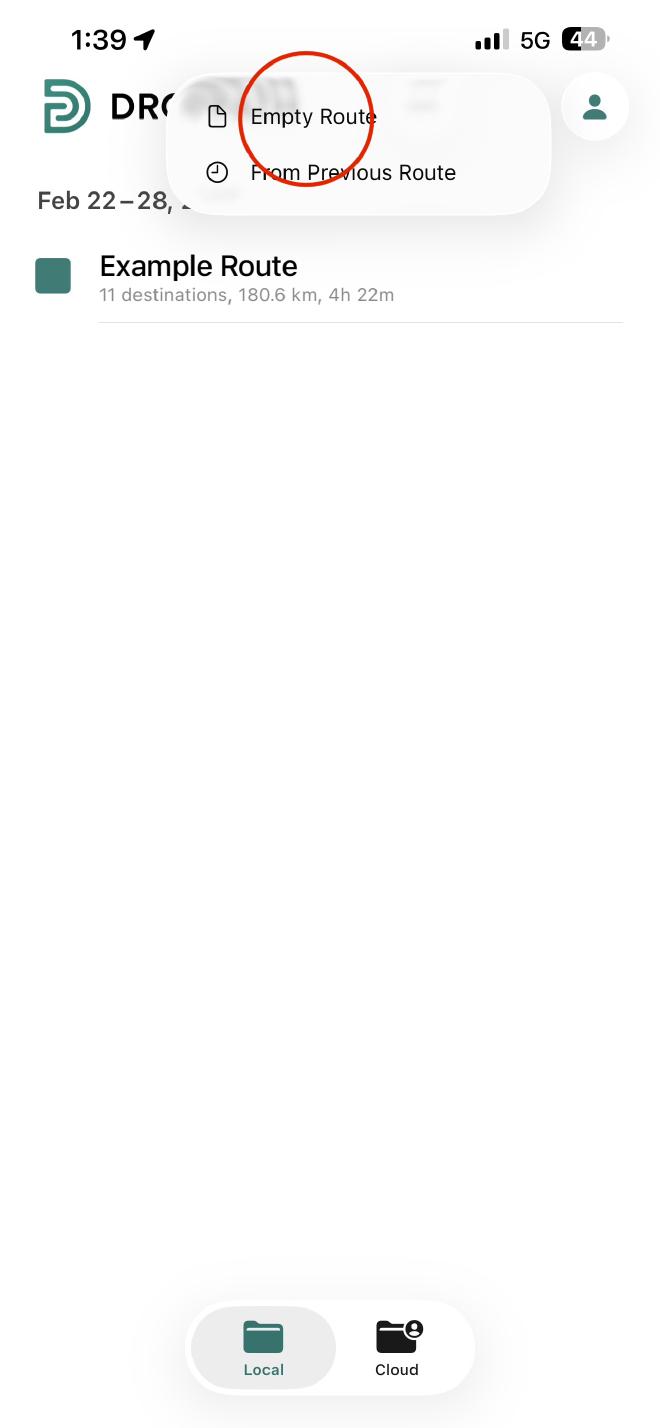
Tap the Plus (+) sign located at the top right of the main screen.
Select Empty Route from the options provided.
2. Add Your Destinations #
To build an accurate route, you need to input your starting point and stops:
Start with your origin: Tap the Plus (+) inside the route and select Current Location to begin from where you are right now, or any other starting point.
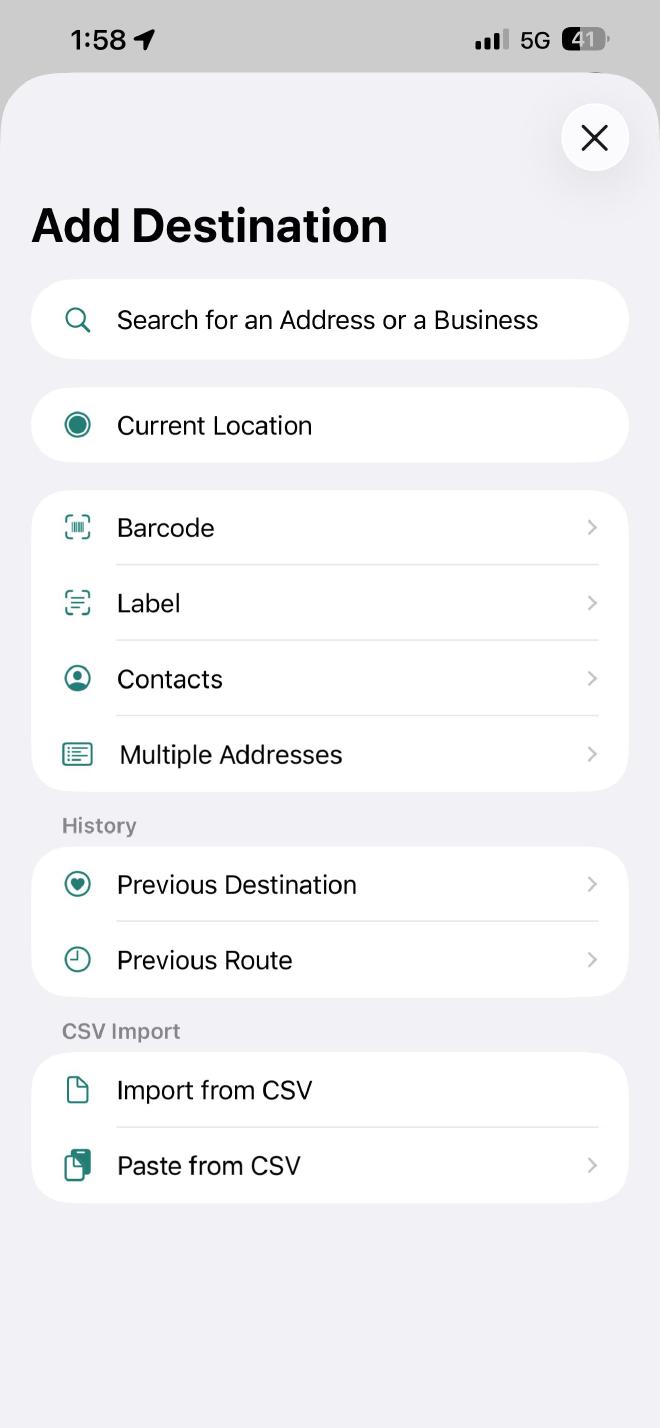
Add stops: Search for specific addresses or business names in the search bar.
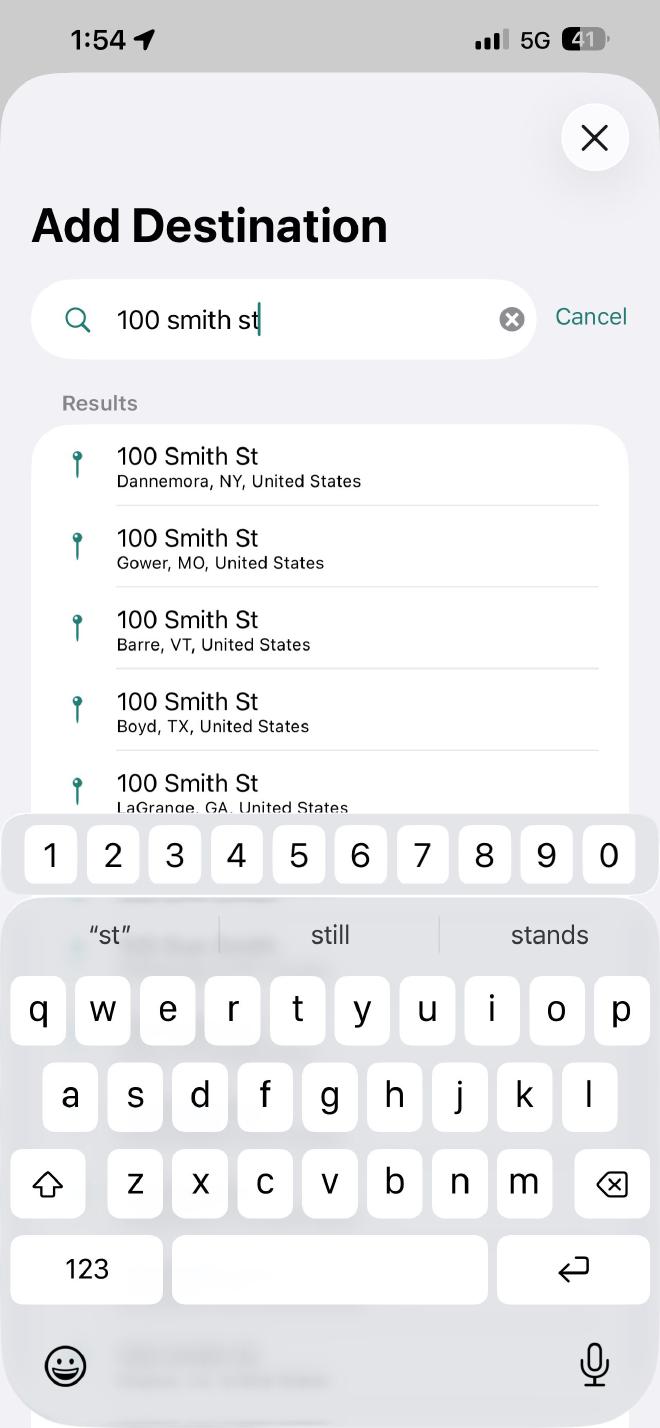
Confirm details: After selecting a destination, you can add extra notes in the pop-up menu or simply hit Confirm to add it to the list.
A unique number (in this route) will be assigned to each destination in the order they are added.
3. Optimize for Speed #
Once you have entered all your addresses, don’t just drive in the order you typed them—let the app find the shortcut.
Tap the Lightning icon in the top right.
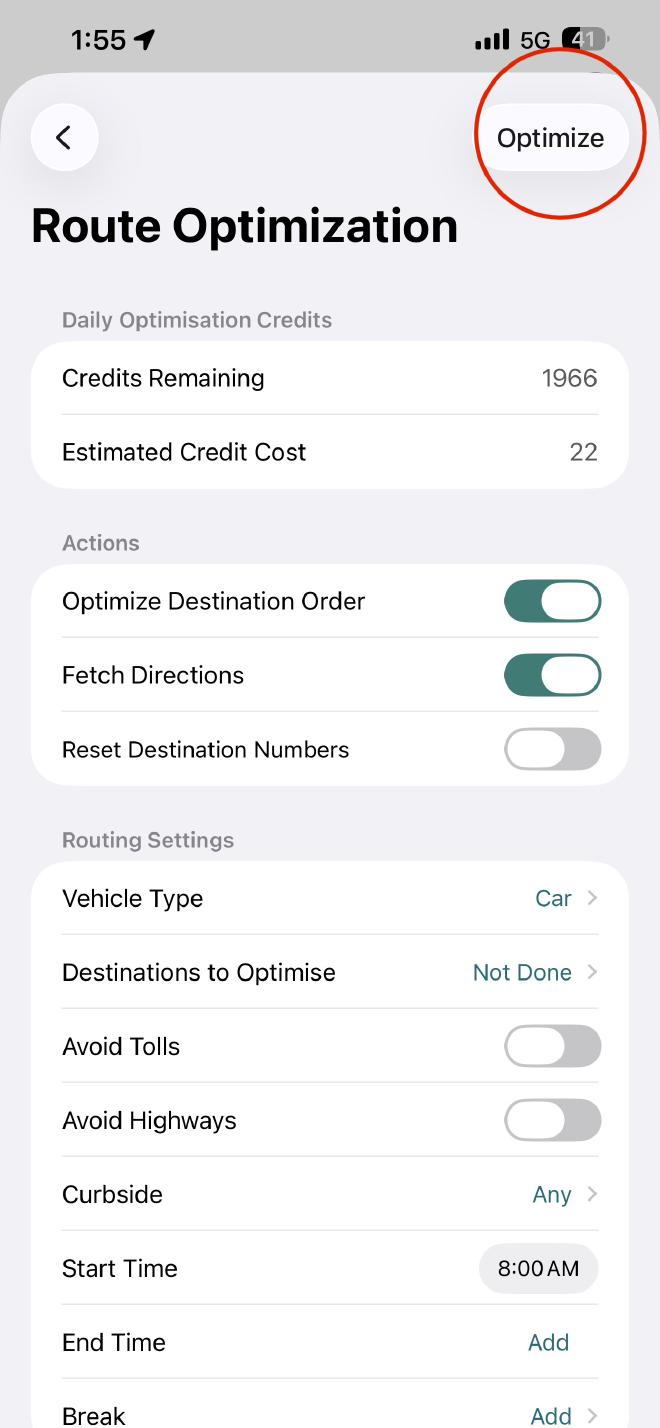
Choose the Optimize or Find Best Route tool.
Adjust any specific parameters (like avoiding tolls or specific vehicle types) and hit Optimize. The app will now reorder your stops into the most logical sequence.
4. Navigation and Driving #
Tap the Directions icon (top right).
Select the Navigate icon.
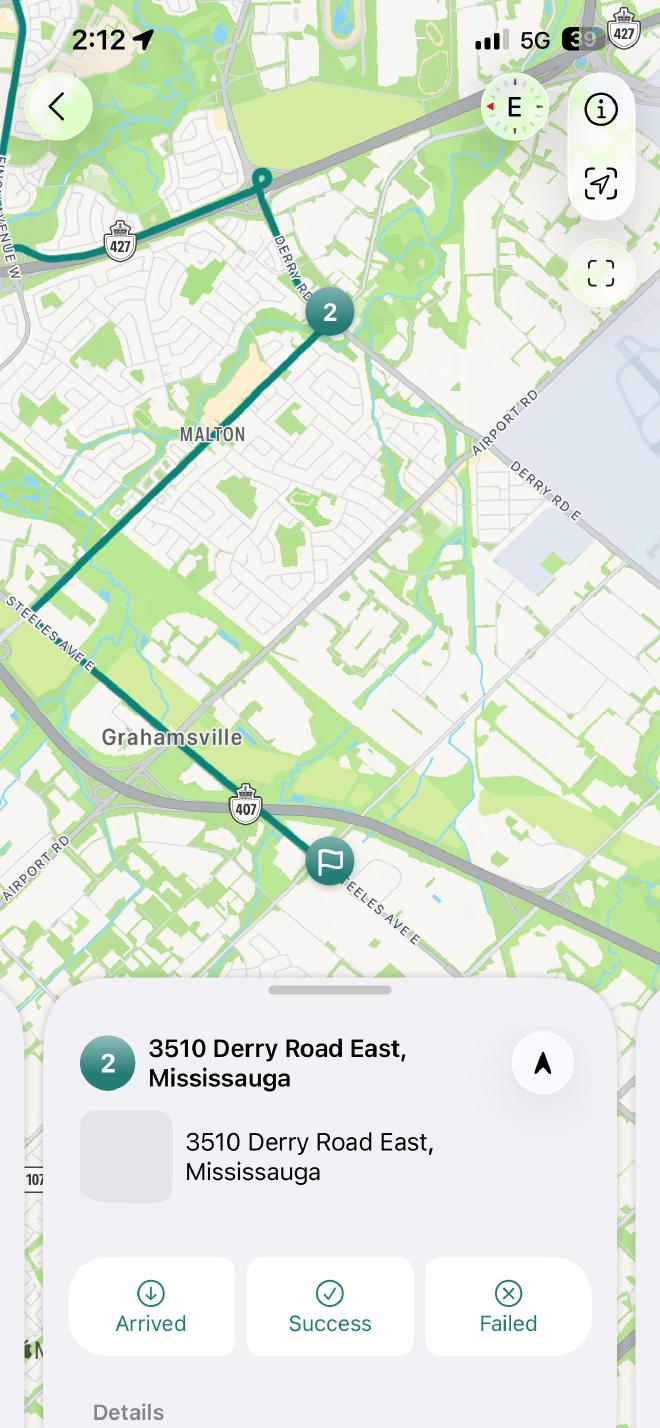
Choose your map: You can use the built-in navigation or export the next stop to Apple Maps or Google Maps based on your preference. Select the navigation (up arrow) icon located to the right of your next stop
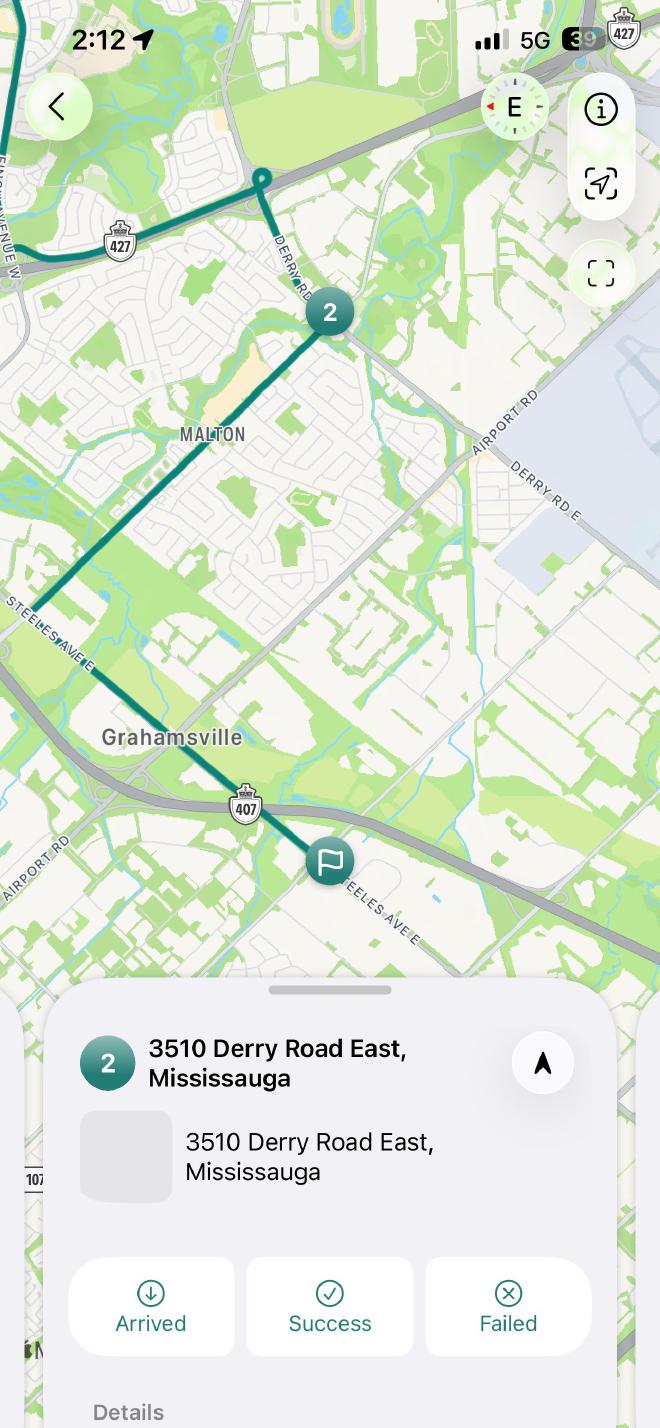
5. Complete the Task #
As you reach each stop, you need to update your progress to keep the route active:
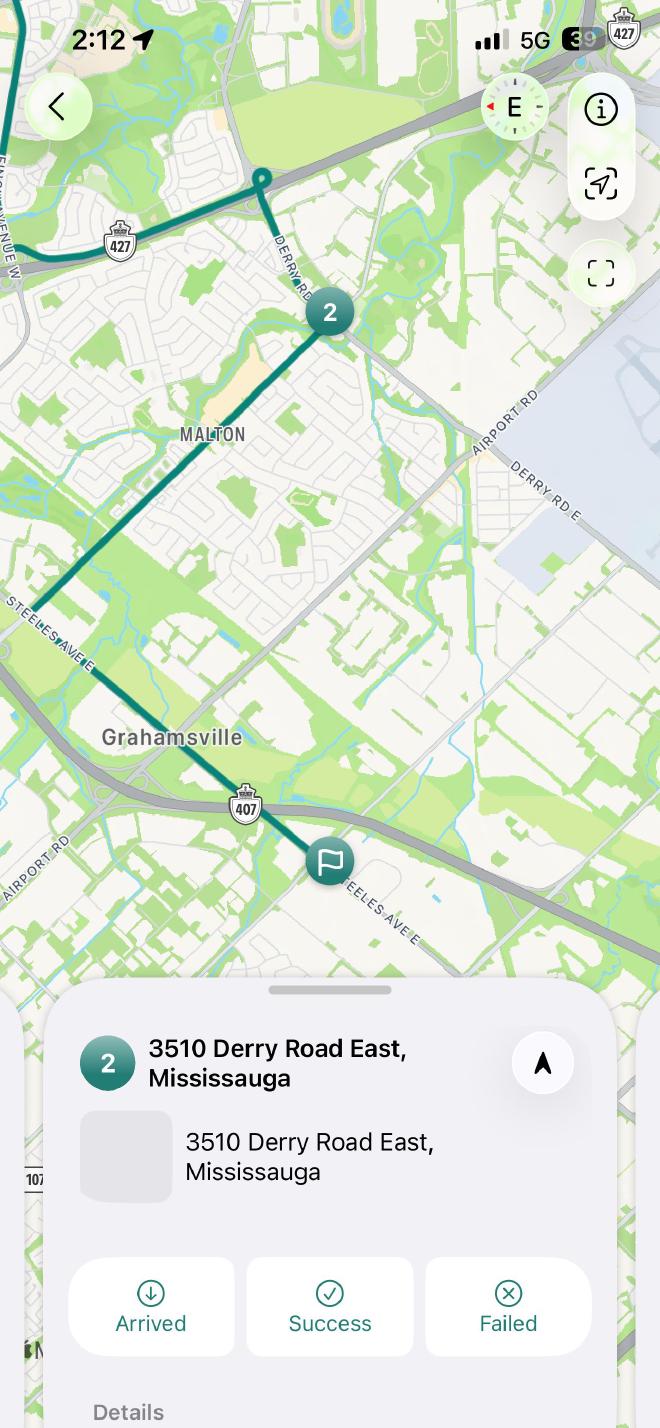
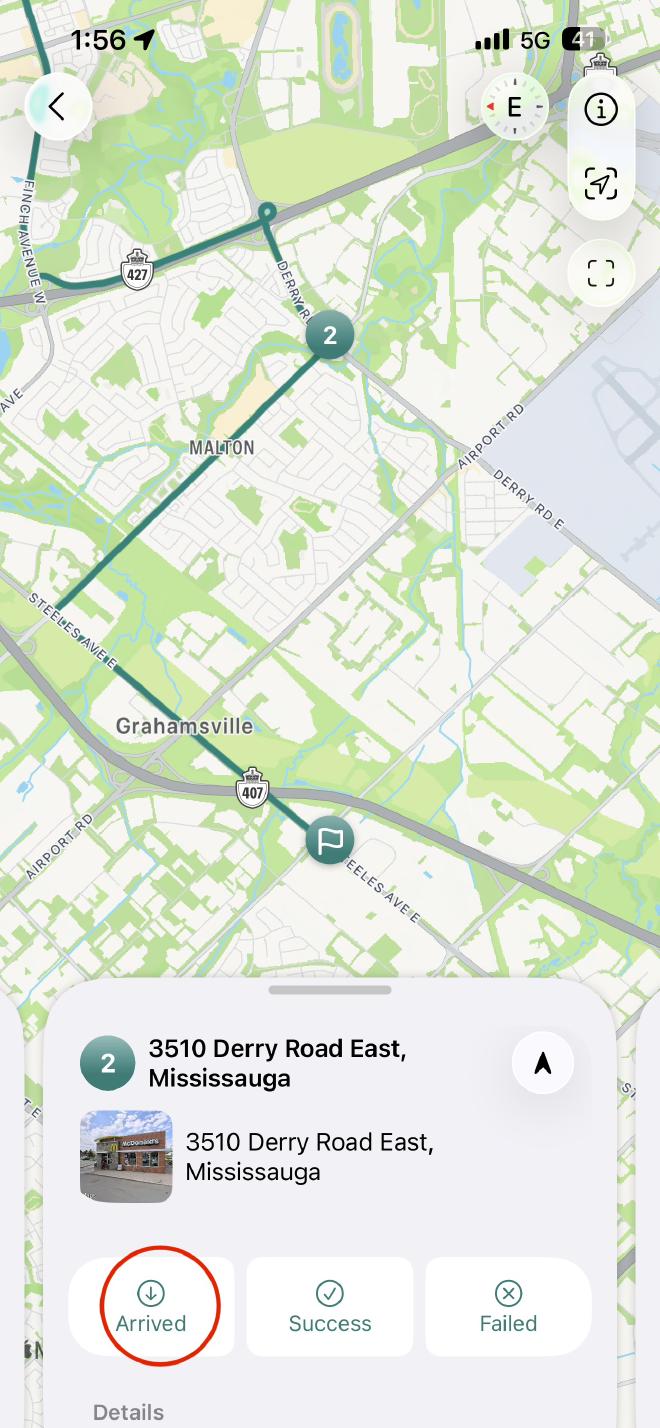
Arrival: Mark the stop as Arrived once you pull up.
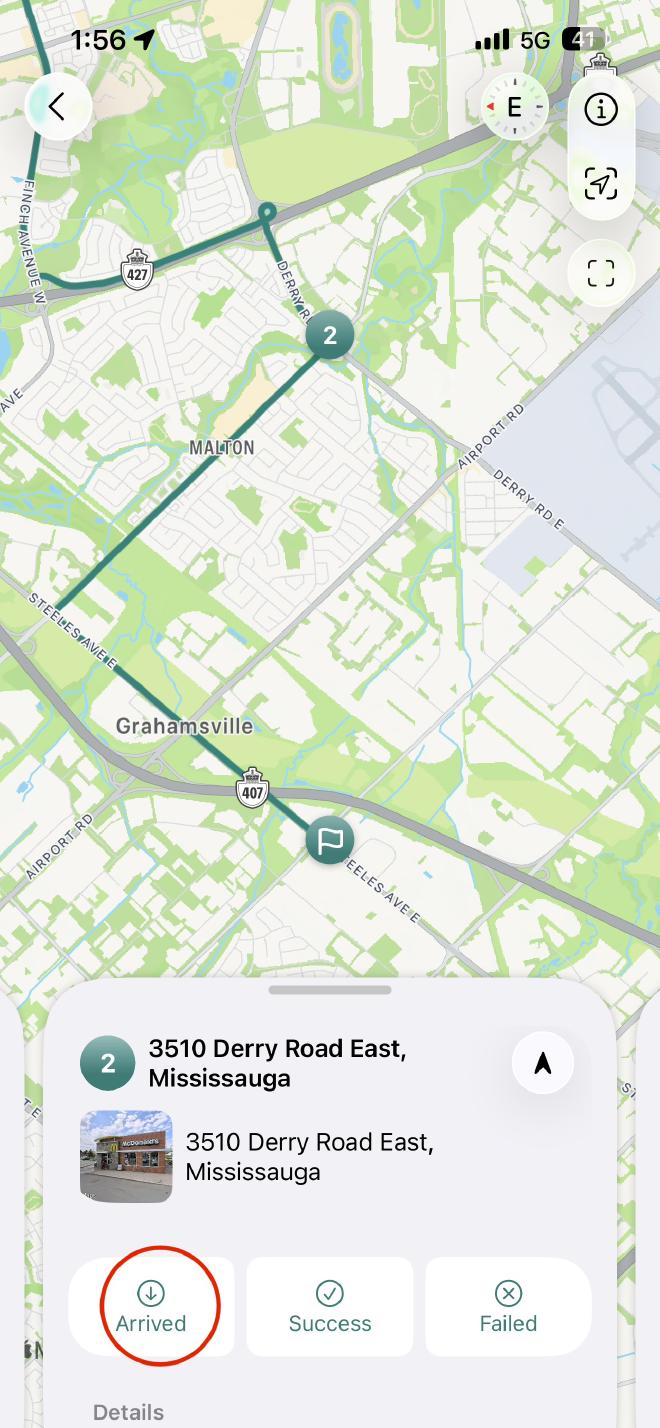
Status: After the task is done, select Success. (If you couldn’t finish the task at the destination, select Failed).
Next Stop: The app will automatically prompt you to begin navigation to the next destination on your list.
Pro-Tips for Efficiency #
- Current Location Saves time by eliminating the need to type your home or office address manually.
- Manual Reordering Useful if you have a high-priority stop that must be done first regardless of distance.
- Success/Failed Log Helps you keep track of your delivery completion rate for later review.
 Download for iOS
 Download for Android