
How to set default start and end locations
Droppath can help you set default start and end locations so you don’t have to add the same start and end each time you create a route.
1. Access Settings #
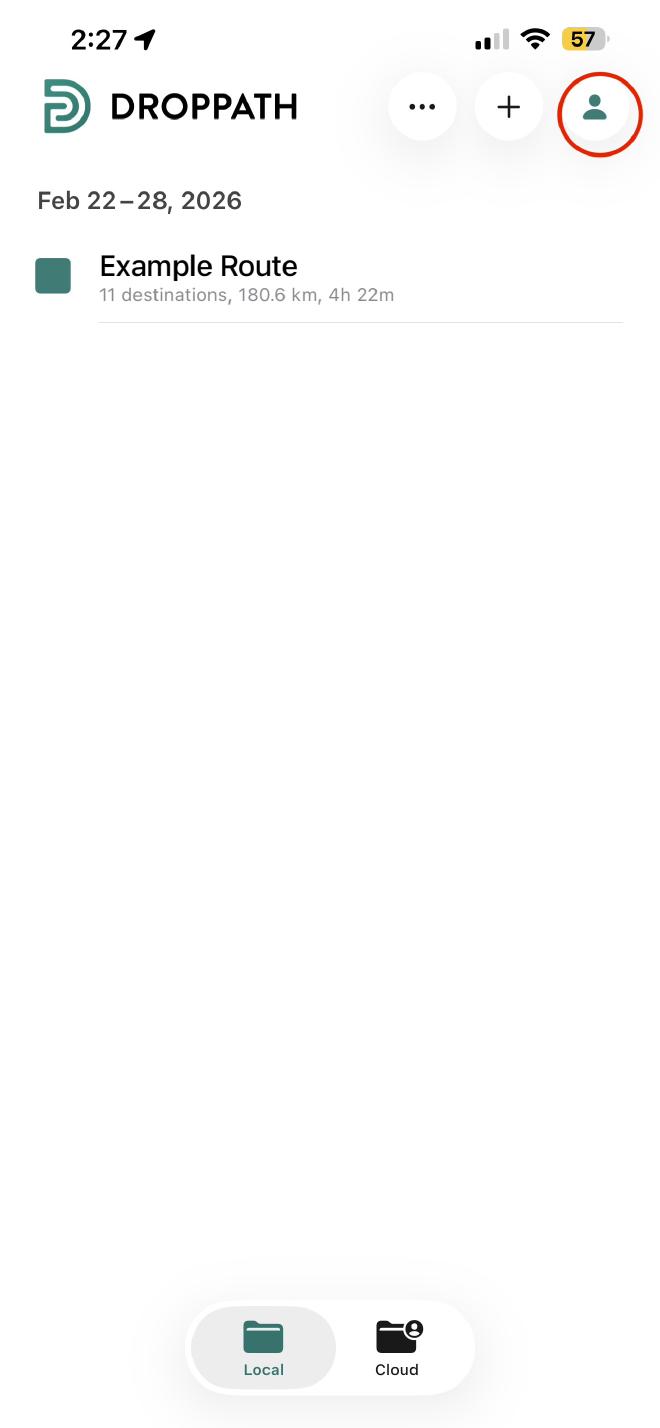
From the main Droppath screen, tap the Account Icon (user icon) at the top right.
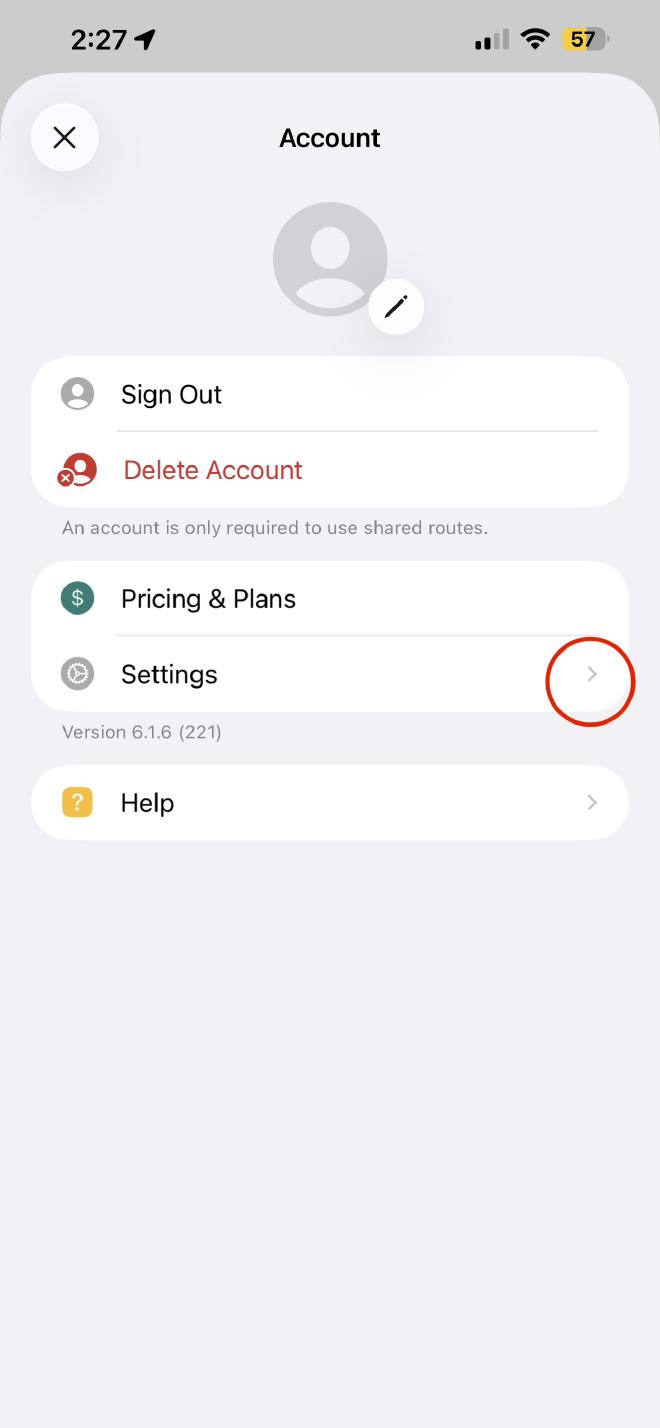
Select Settings from the menu.
2. Define Default Start #
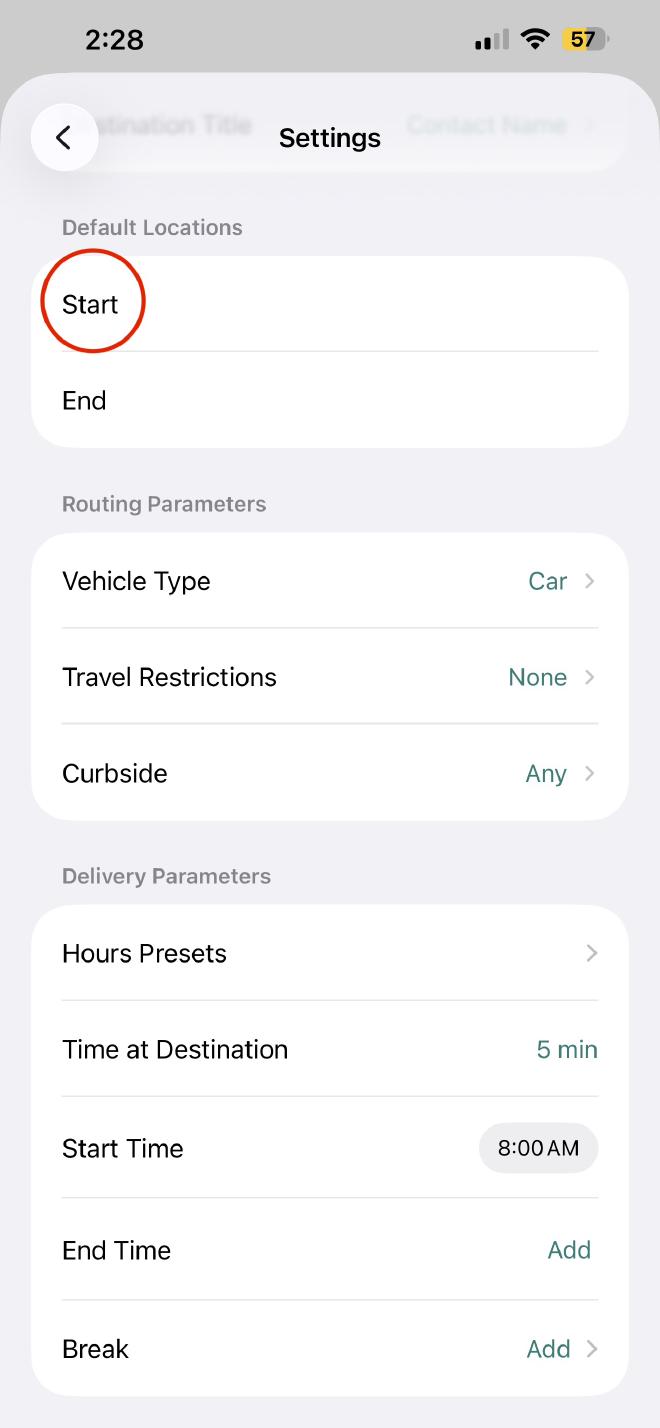
In the Settings menu, scroll down to the Default Locations section.
Tap on Start.
Use the search bar to enter your preferred starting address or business name
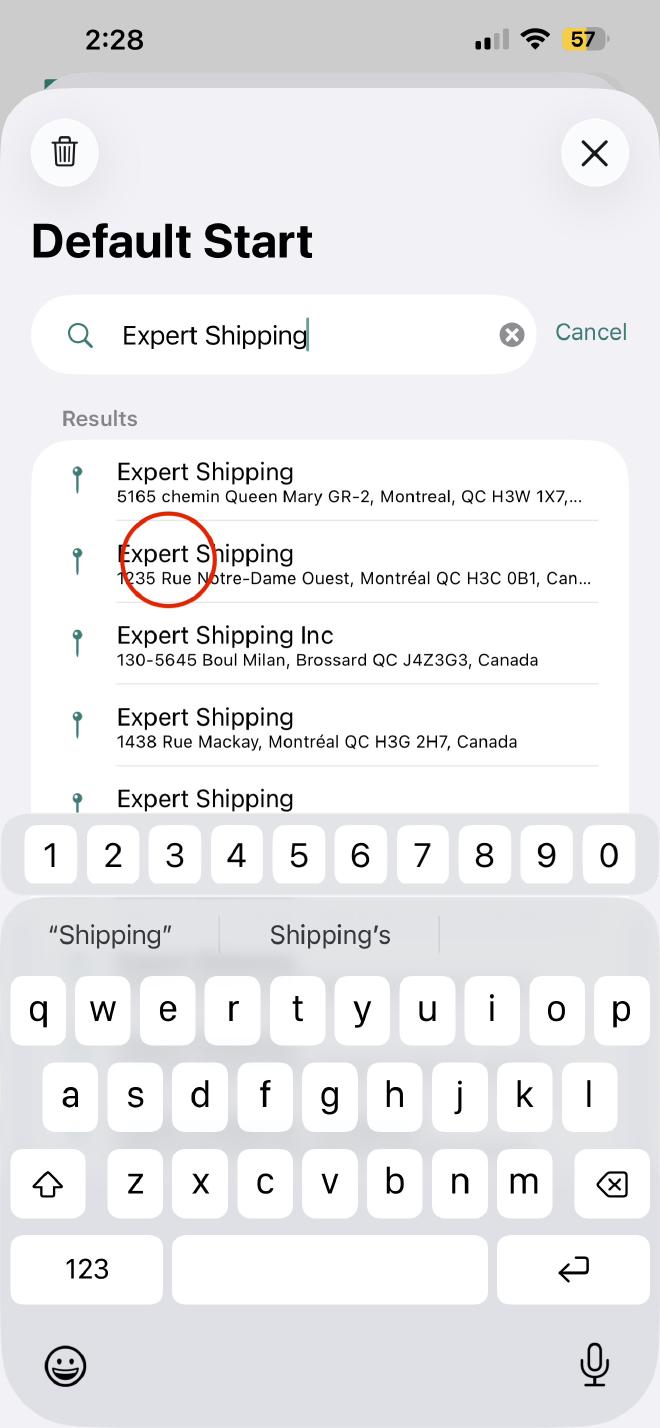
Adjust the search string as needed and select the correct address.
You can rename the address if you wish, and choose a marker that will appear on your map.
Hit Add to select it as your default start location.
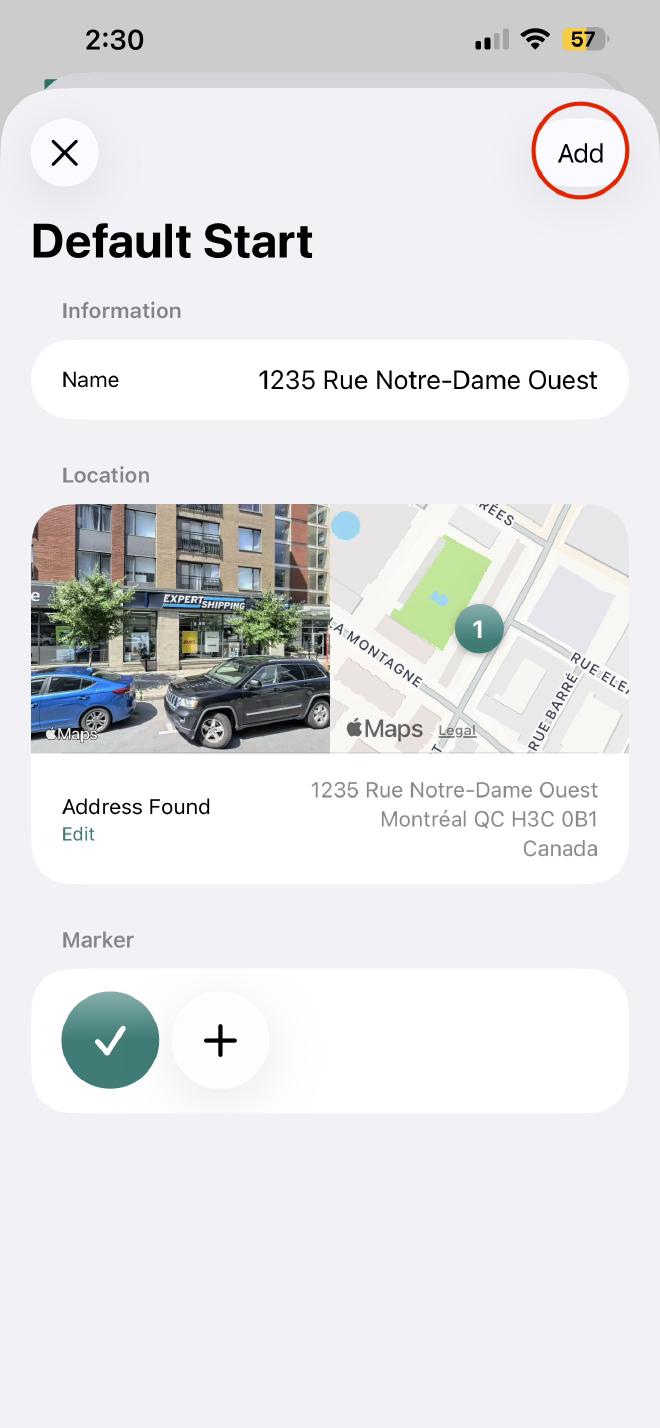
3. Define Default End #
Return to the Default Locations section.
Tap on End.
Enter the specific address or business name where you typically finish your routes.
Adjust the search string as needed and select the correct address.
You can rename the address if you wish, and choose a marker that will appear on your map.
Hit Add to select it as your default end location.
By setting your default start and end locations, you ensure that every new route is automatically streamlined, saving you valuable time and effort during the route creation process!
 Download for iOS
 Download for Android